Překresleno.cz: image conversion without uploading your photos
In this article
A photo is in the wrong format. You need a JPEG for an attachment, a smaller image for a website, or a quick preview of a camera RAW file. It should be a small job, yet many online converters start by asking you to send the original to their server.
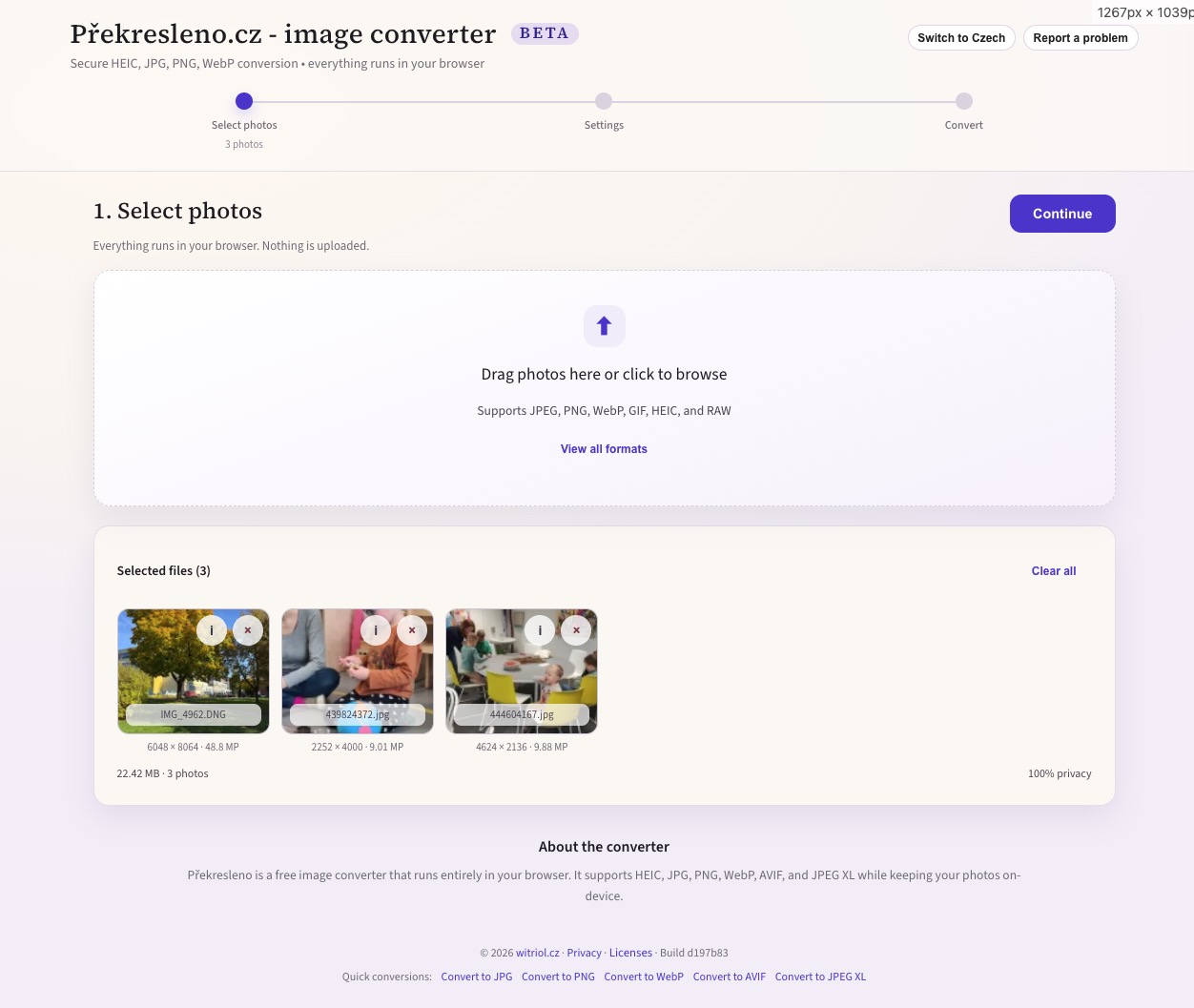
I wanted a tool that could do the conversion on the device already holding the file. That became Překresleno.cz: select images, choose a format and size, then download the results. Image processing happens in the browser, without an account or an upload of the photos.
From a folder of photos to a usable result
The app accepts JPEG, PNG, WebP, and GIF, along with HEIC/HEIF photos and supported camera RAW files. Output formats are PNG, JPEG, WebP, AVIF, and experimental JPEG XL. You can convert several files in one batch, follow their progress, and download them individually or together as a ZIP.
For a batch of phone photos that need to become email attachments, the steps are straightforward:
- Open the app and select or drag in the photos.
- Choose JPEG as the output format.
- Set a maximum dimension if the recipient does not need the full resolution.
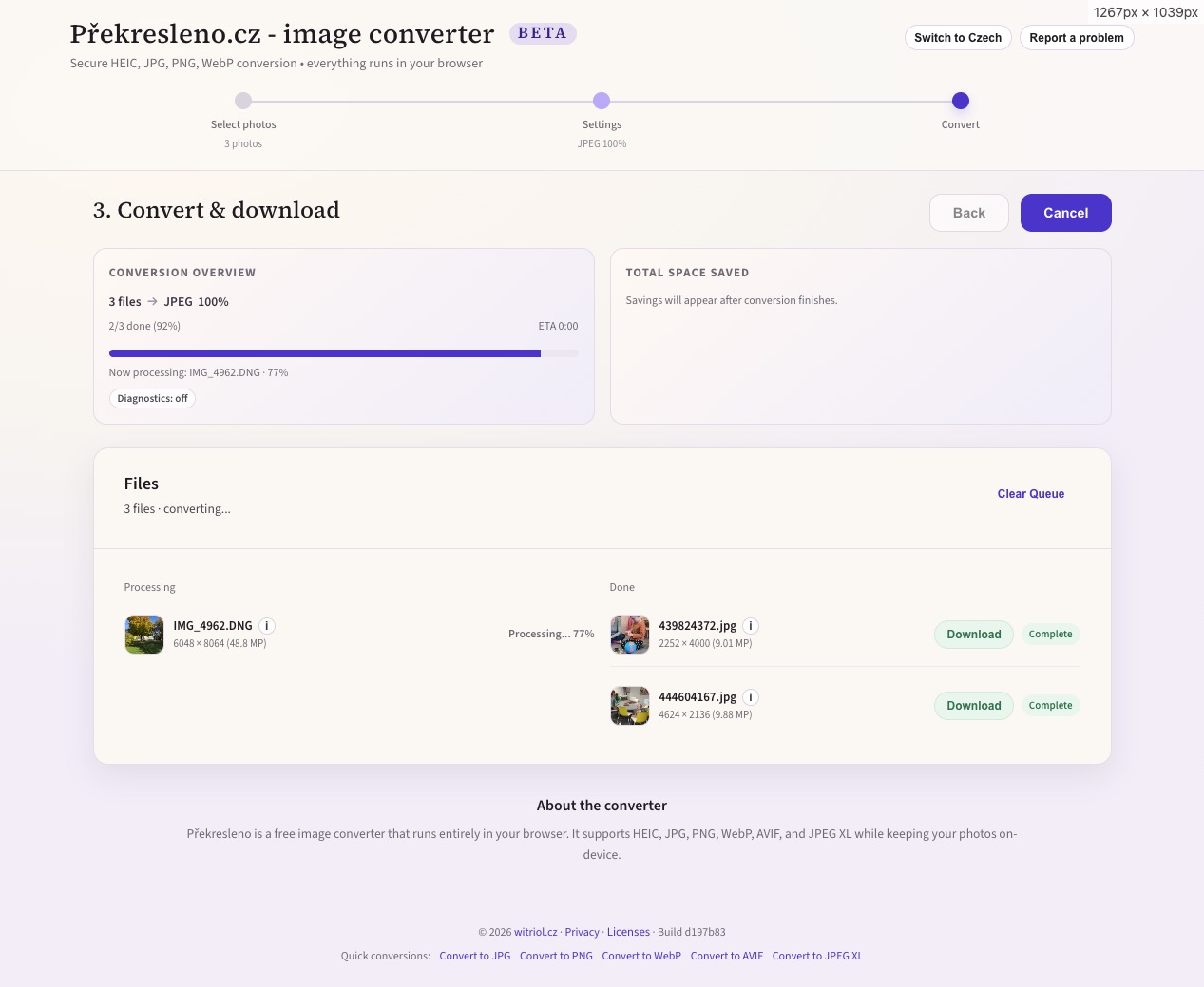
- Convert the files, inspect the results, and download them.
Reducing the dimensions often affects file size as much as changing the format. A 6000 × 4000 photo contains 24 million pixels. Reducing it to 3000 × 2000 leaves 6 million: half the width and height, but a quarter of the pixels. The file will not necessarily become exactly four times smaller, because compression depends on the picture, but the encoder has far less image data to handle.
The app offers both a maximum width or height and a megapixel limit. The first is useful when you know the display size; the second caps the total pixel count across photos with different proportions.
What stays on your device
The browser reads the selected files, decodes them, and produces new files locally. There is no server waiting for the original image before it can start converting it. This also removes upload time from the conversion, although a demanding codec can still take a while on a slower device.
That is a specific promise about image processing. The app still downloads its code and codecs when you load it. Optional diagnostics can send conversion statistics, such as formats, sizes, and processing times, when enabled. They do not send the image contents. Opening the metadata panel for a photo with GPS coordinates can also make the app look up the address through OpenStreetMap's Nominatim service, which receives those coordinates.
Before sharing the output, check its metadata too. Photos can carry a capture date, camera details, and GPS location. The app has a metadata-removal setting; preserving metadata is supported only for JPEG output. Local conversion and metadata removal solve different problems: one concerns processing the original, the other concerns information attached to the file you send onward.
How WebAssembly fits in
The conversion has five main steps:
Read file -> decode to pixels -> resize if requested -> encode -> downloadDecoding turns a compressed file into pixels the app can work with. Encoding turns those pixels into a file in the chosen output format. The browser already provides some of this machinery, but its built-in support does not cover every format the app needs.
For common inputs, the app uses browser facilities such as createImageBitmap where supported. HEIC/HEIF takes a different route: the heic-to and heic-decode dependencies provide access to libheif decoding, including a WebAssembly implementation. RAW files follow the preview-extraction path described below.
On the output side, the @jsquash/* codecs provide encoders for formats including WebP, AVIF, and JPEG XL. WebAssembly lets compiled codec code run inside the browser. That lets the app offer output formats and settings that the browser's native image export functions do not.
Web workers handle heavy work where possible. A worker runs separately from the thread drawing the interface, so a conversion does not have to block every button and progress update. Transferring ArrayBuffers between threads also helps avoid unnecessary copies of large pixel buffers. Workers improve responsiveness; they do not remove the CPU or memory cost of the conversion.
RAW support means extracting the camera's preview
A RAW file contains sensor data, but it can also contain a JPEG preview already processed by the camera. Překresleno.cz uses exifr to extract that preview from supported files.
This is useful when you want to see or share a picture quickly. It does not provide the exposure, white-balance, or highlight-recovery controls of a RAW editor. The camera has already made those rendering choices for the preview, and its dimensions and quality depend on what the camera stored.
A RAW extension alone therefore does not guarantee a useful result. If the file contains only a small preview, the converter cannot recover full-resolution detail from it. Exporting that preview to PNG also cannot restore information the JPEG preview has already lost. Keep the RAW original for later editing.
Choosing an output format
Start with where the result will be used. File-size savings vary with image content, dimensions, and encoder settings, so a fixed percentage is a poor guide for an individual photo.
| Format | Useful for | Main tradeoff |
|---|---|---|
| JPEG | Photo attachments and broad compatibility | Lossy compression; no transparency |
| PNG | Screenshots, sharp text, and lossless output with transparency | Photographs can produce large files |
| WebP | Web images when the destination accepts it | Check support in the receiving app or service |
| AVIF | Compact images when encoding time is less important | Encoding can be slow, especially for large images |
| JPEG XL (beta) | Trying the experimental encoder in a compatible workflow | Check that the destination can open the result |
MDN's image format guide explains the format capabilities and browser support in more detail.
A quality value is also not a universal scale: JPEG at 80 and AVIF at 80 need not look alike or produce similar file sizes. Convert a representative image first and compare it at the size you intend to use. Pay attention to fine text, edges, and gradients. For a large batch, that small check is more useful than trusting the format name alone.
The limits of doing everything locally
Compressed files can be deceptively small. A 24-megapixel image stored as RGBA with 8 bits per channel (4 bytes per pixel) needs about 96 MB for a single uncompressed pixel buffer. Decoding, resizing, previews, and encoding may require additional memory. A folder of small JPEGs can therefore create substantial memory pressure inside a tab.
AVIF and JPEG XL can also demand more processing time than a quick JPEG export. If a batch struggles, try fewer files at once or smaller output dimensions. This is a utility for everyday conversions; the user's device still sets the practical limits.
The app's service worker caches application files and selected dependencies. This helps with offline use, but it is not a guarantee that every conversion path will work without a connection: the needed codec must also be available. A first visit needs the network, and later availability depends on the browser retaining the cached files.
For me, the appeal is that the server does not need to receive, store, or process a collection of someone else's photos. It delivers the application, and the device does the image work. That covers the small, frequent conversion jobs I built Překresleno.cz for.