DLQ: a download queue for a home server
In this article
For years, I used JDownloader2 on my home server. It ran in Docker, and I controlled its desktop interface through VNC in a browser. The downloads worked. Managing them was the part that wore me down.
Pasting links meant dealing with clipboard sharing between the browser and the remote desktop. The window never fit properly in the browser, and using it from a phone was awkward. In my setup, adding links from the command line also meant going through MyJDownloader and an online account. I wanted something I could control directly on my own server.
So I built DLQ (Download Queue): a service that keeps a download queue, exposes an API, and can be driven from a terminal or a web page. It also gave me a practical reason to learn Go and SvelteKit.
The code and setup instructions are in the DLQ repository.
The workflow I wanted
Most of my download jobs follow a simple pattern: add some links, choose a folder, leave the server to work, and check the result later. If something fails, I want to know why and retry it without reconstructing the whole batch.
DLQ is built around that pattern. It supports direct HTTP/HTTPS links, Webshare in anonymous mode, and public MEGA file links. Its scope is deliberately narrow. It has fewer storage integrations than JDownloader2 and does not handle captchas or link grabbing.
Once the container is running and the destination is configured, the usual interaction looks like this. Replace <url> with a download link, and replace 12 with the job ID returned by DLQ:
# Add a download to a folder inside the container
docker exec -it dlq dlq add "<url>" --out /data/downloads

# Watch progress
docker exec -it dlq dlq status --watch

# Read the latest events for job 12
docker exec -it dlq dlq logs 12 --tail 80

# Retry that job after investigating the failure
docker exec -it dlq dlq retry 12
For a batch, the CLI can read one URL per line from standard input. Here, urls.txt is on the machine running the Docker command:
docker exec -i dlq dlq add --stdin --out /data/downloads < urls.txtThe -i forwards the file contents into the container. There is no interactive terminal to manage, which makes this form useful in scripts.

Who does what
The core is dlqd, a Go daemon with an HTTP API on port 8099 by default. The dlq CLI is a client of that API. The optional SvelteKit web interface runs separately on port 8098 and proxies requests to the daemon from its server side.
Behind the API, responsibilities are split into three parts:
- A resolver turns a supported link into the information needed to download it. A direct HTTP link may need little work; a hosting-service link can require a temporary download URL.
- The queue stores jobs in SQLite and manages their state, attempts, and events.
- aria2 transfers the file and reports progress through JSON-RPC.
Browser -> web UI (:8098) -> dlqd API (:8099) <- dlq CLI
                              |
                              +-- SQLite: jobs and events
                              +-- resolvers: prepare download links
                              +-- aria2: transfer files
                              +-- post-processing: decrypt or extract
I chose aria2 because transferring files reliably is already a substantial problem. It provides download progress, parallel transfers, and resume support. DLQ adds the parts I wanted around that: a durable queue, service-specific behavior, destination selection, and enough history to understand a failure.
A queue entry outlives a transfer
A job contains more than its URL. DLQ records its state, attempts, destination, filename, resolver metadata, and events. That distinction matters when a connection drops or a service returns a temporary error: the failed transfer is still an identifiable job that can be inspected and retried.
The usual path is queued → resolving → downloading → completed. Jobs can also be paused, fail, or enter decrypting for post-processing. A failure at that last stage becomes decrypt_failed, so a successfully transferred archive does not appear to be fully finished when extraction failed.
Persistence has a deployment requirement: the database lives at /state/dlq.db by default, so /state needs a persistent Docker volume or bind mount. Downloaded files need their own persistent destination, commonly under /data. Keeping only the files loses the queue history when the container is replaced; keeping only the database does not preserve the downloaded content.
A persistent queue also does not guarantee that every remote transfer can continue from the same byte. That depends on the host and the download URL. For Webshare, pause/resume behaves more like stop/retry: resolving a fresh link can be more useful than holding on to stale transfer state.
Failures that tell me what to do next
Resolvers return specific error codes. They make it easier to distinguish a retryable interruption from a job that cannot proceed under the current conditions:
| Error | Meaning |
|---|---|
login_required | The host requires authentication for this request |
quota_exceeded | The host reports that a download limit has been reached |
captcha_needed | The host requires a captcha step |
temporarily_unavailable | The resource or service is temporarily unavailable |
unknown_site | An explicitly selected resolver is not recognized |
These codes explain a blocker; they do not bypass it. If a host requires a login or a captcha, the anonymous resolver cannot satisfy it, however many times it retries. The per-job events give me somewhere to look before deciding whether another attempt makes sense.
Post-processing needs the same clarity. DLQ can decrypt or extract archives after downloading, accept an archive password for a batch, and mask sensitive values in logs. MEGA has a separate payload-decryption step with integrity verification; that is distinct from unpacking a password-protected archive.
Multipart archives add another complication: one logical download can consist of many files. DLQ groups .partNN.rar and older .rar / .r00 sets so I can retry or remove the group together. This matches how I think about the archive instead of making me manage each part separately.
Storage paths and the web interface
A destination such as /data/downloads is a path inside the container. Docker's volume mapping determines where those bytes live on the host. DLQ's DATA_* configuration declares the allowed destinations, and the daemon checks requested output directories against those roots.
Both pieces need to agree: Docker must mount the storage, and DLQ must know the permitted container path. A DATA_* value does not create a Docker mount by itself. The same configuration supplies folder presets to the API and UI, which is handy on Unraid when several storage locations are attached to one container.
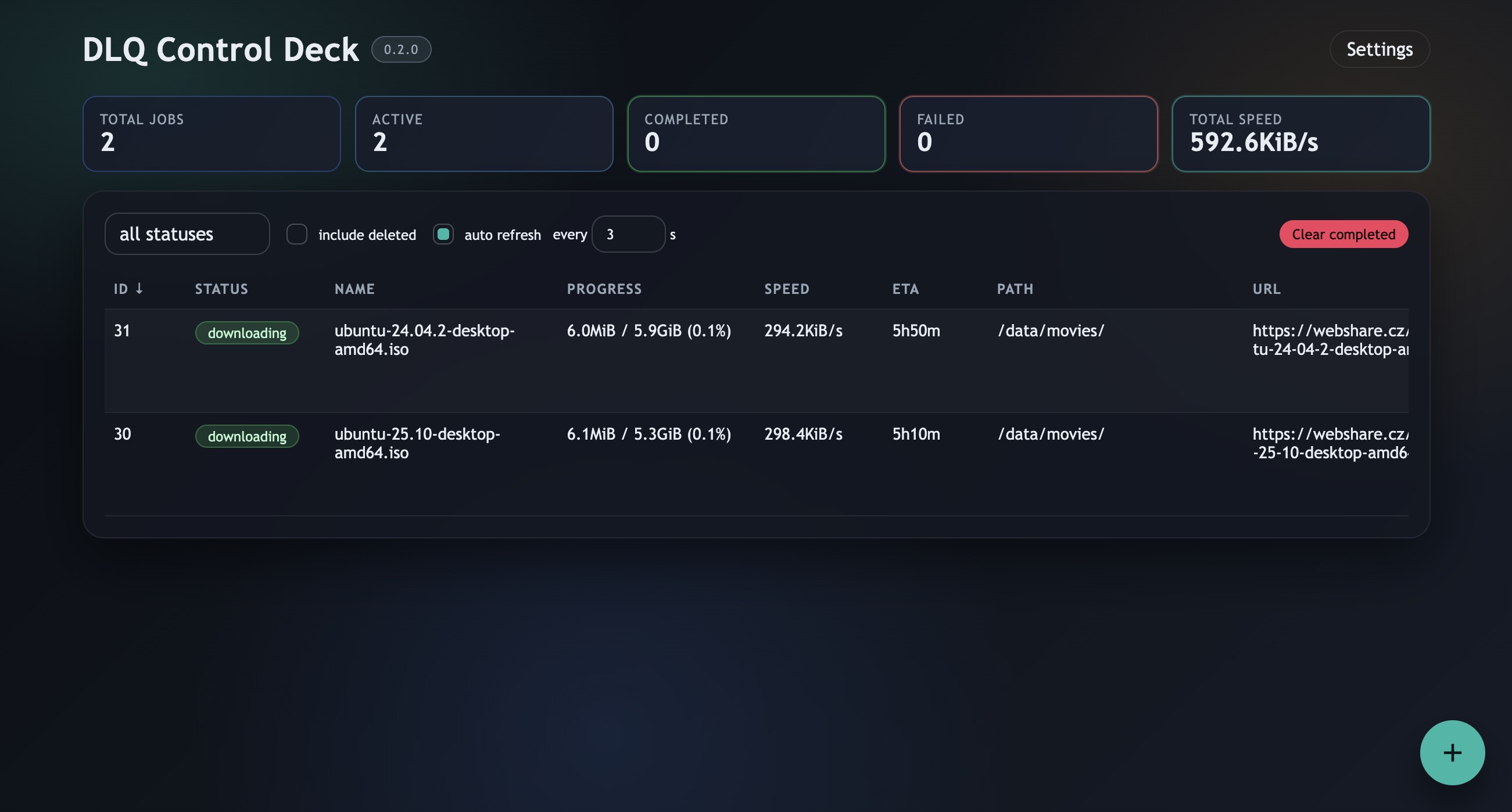
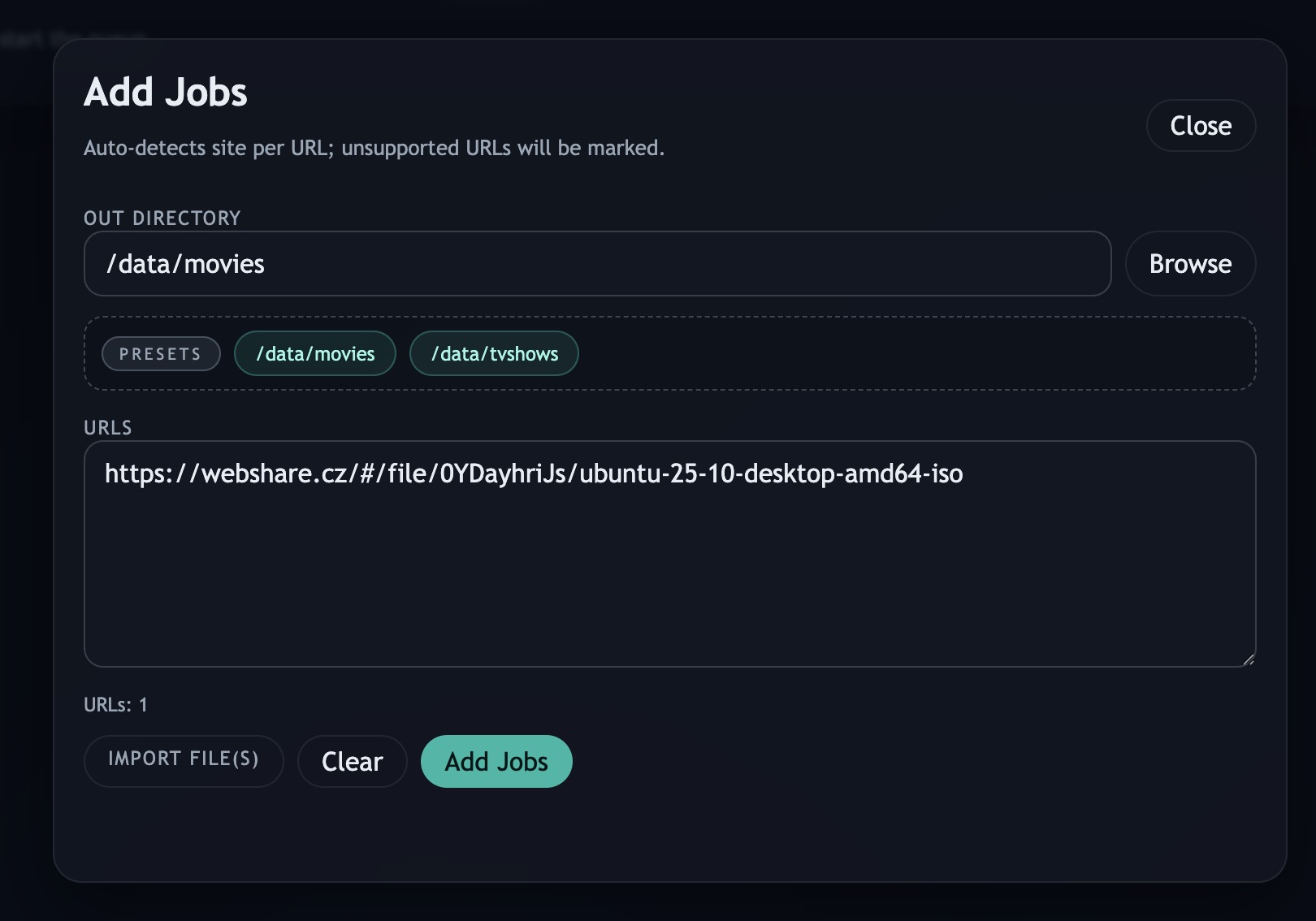
The web interface makes the queue comfortable to use away from a terminal. It provides batch entry, folder browsing, favorite destinations, grouped jobs, runtime settings, and logs. Both interfaces operate on the same queue: I can add links over SSH and check them later from my phone.
DLQ is intended for a trusted home or Docker network. Its HTTP API has no authentication. Remote access therefore needs an authenticated entry point, such as a reverse proxy, with direct access to the daemon blocked. Protecting only the web page while leaving the API reachable would leave the queue exposed. aria2's RPC endpoint has its own ARIA2_SECRET setting; that secret does not authenticate DLQ's HTTP API.
What the project changed for me
The first version was a daemon, a CLI, SQLite, aria2, and a Webshare resolver. The additions came from using it: a web interface for the phone, MEGA support, archive extraction, multipart grouping, favorite folders, and settings I could change without rebuilding the container.
Go gave me a practical project involving an HTTP service, concurrent work, and a command-line client. SvelteKit gave me a way to build a small dashboard around that service. Keeping the queue in the daemon meant the web interface could remain optional as the project grew.
The result fits the job I needed done. I can submit links, close the terminal, and return to a queue that remembers what happened. The remote desktop is no longer part of that routine.